Work with the Related Entities Mapper
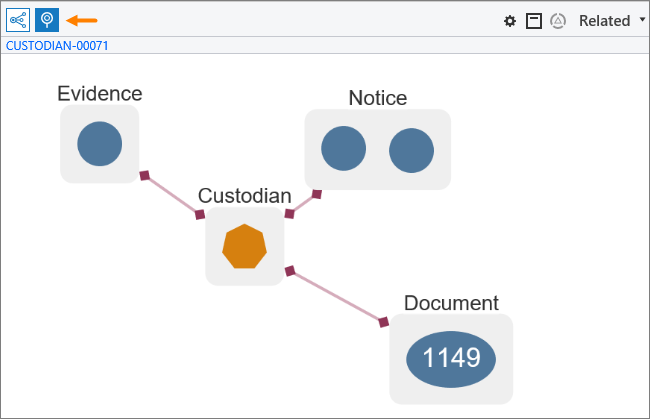
The Related Entities Mapper is available in the Related pane on the Documents page. It provides a visualization of related entities and entity items, as well as the connections between the entities and entity items.
Note: To use this feature, your administrator must grant you access to data models.
Depending on the configuration of the Related Entities Mapper, different elements may appear in the visualization, as described in the following table.
|
Element |
Description |
|
|
The root entity item |
 |
The active root entity item |
 |
The active entity item |
 |
An entity item with a direct relationship to the active entity item |
 |
An entity item with an indirect relationship to the active entity item |
 |
An entity cluster
|

To start working with the Related Entities Mapper feature:
Search for an entity item.
In the List pane, select an entity item.
In the Related pane, on the toolbar, click the Related Entities Mapper button.
A visualization appears that shows the items connected to the selected entity item.
Tip: Use your mouse to rearrange the visualization.
The root entity item appears as a seven-sided polygon. The entity items that are connected to the root entity item appear in entity clusters. If an entity cluster includes more than 400 items, the total number of entity items appears instead of the individual entity items. For example, the Document entity cluster in the previous figure contains 1149 items.
You can perform a variety of tasks in the Related Entities Mapper, some of which are described in this topic.
View detailed information about an entity item
To view detailed information about an entity item:
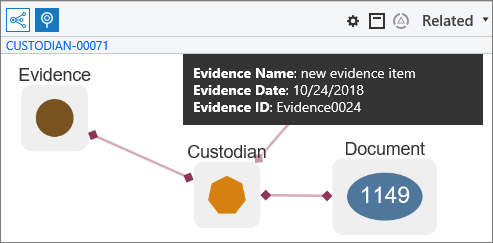
Hover over an entity item, for example, Evidence.
Make an entity item the active entity item
To make an entity item the active entity item:
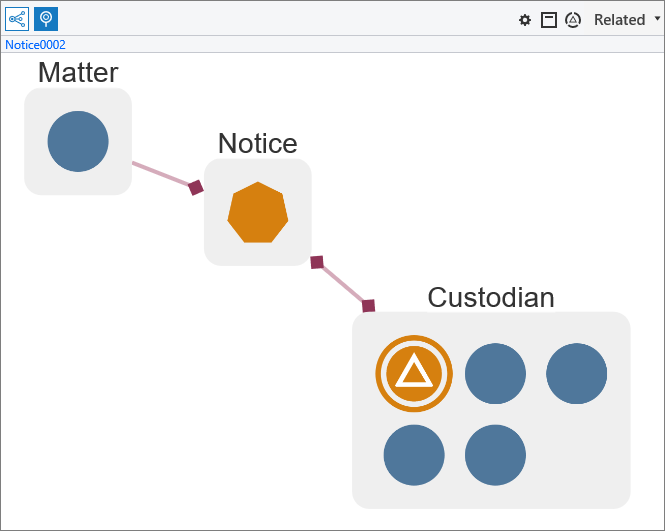
Click on an entity item. A triangle appears in the circle, which indicates that the entity item is now the active entity item. For example, in the following figure, a Custodian entity item is selected in the Custodian entity cluster.
Change the pivot item
To change the pivot item in the Related Entities Mapper:
In the Related pane, on the Related Entities Mapper tab, select an entity item, and then click the Make pivot button on the toolbar.
The selected item becomes the active entity item. The Related pane reloads with the entity items that are related to the pivot item.
If there are more than two items in the breadcrumb trail, they appear on a menu between the root item and the current pivot.
Load the entity items in an entity cluster
To load the entity items in an entity cluster:
Right-click an entity cluster, and then select Load these items.
After you select the Load these items option, the following things happen:
The Related pane refreshes and the Related documents tab appears.
The entity items appear in the List pane.
To view the related entities, click the Related entities button on the toolbar.
To view the Related Entities Mapper visualization, click the Related Entities Mapper button on the toolbar.
To add a new entity item:
Right-click on a root entity item, select Add new, and then select the name of an entity. In the following figure, Evidence is selected.
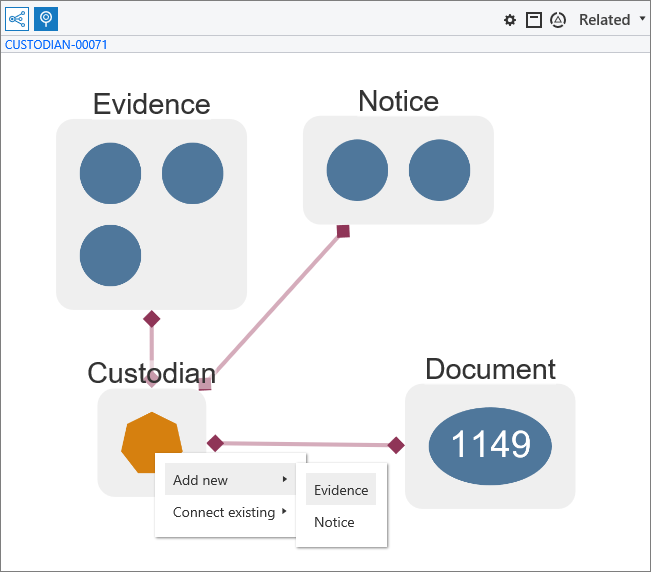
A new entity item is added to the Evidence entity cluster.
Connect an entity item to an existing entity item
To connect an entity item to an existing entity item:
In the Related Entities Mapper, right-click over a root entity item, select Connect existing, and then select the name of an entity.
In the Connect existing [name of entity] item dialog box, search for an entity item, select one or more entity items, and then click Save.
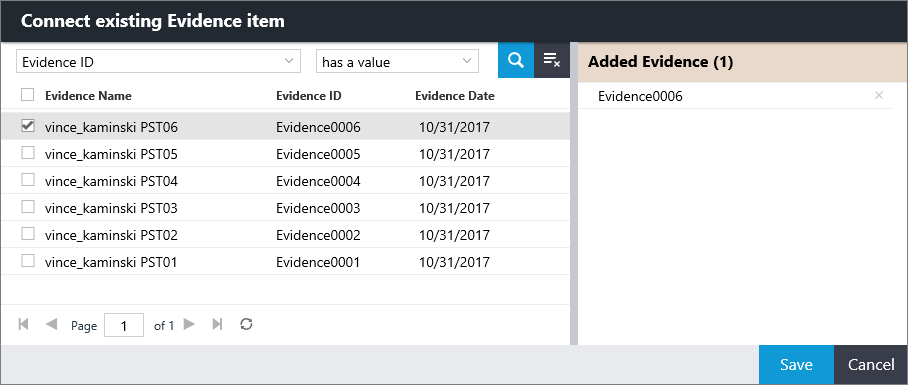
The connection is established, and the Related Entities Mapper visualization is updated.